This feature is currently in beta.
Overview
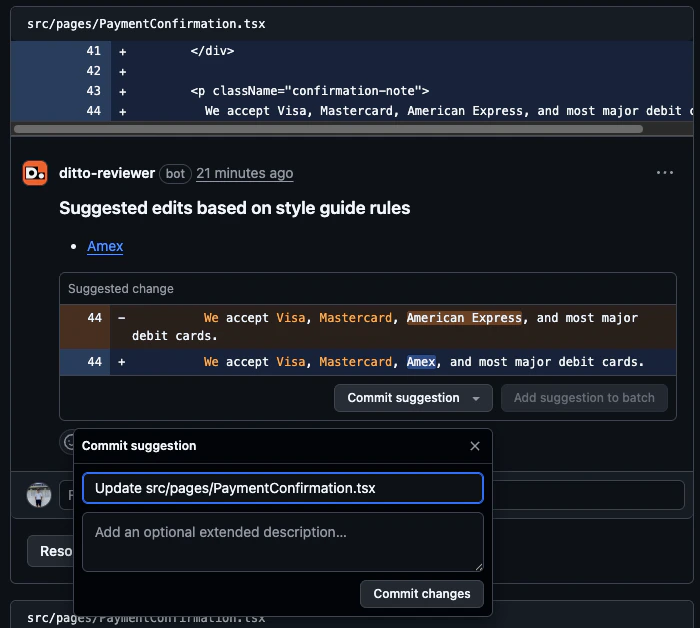
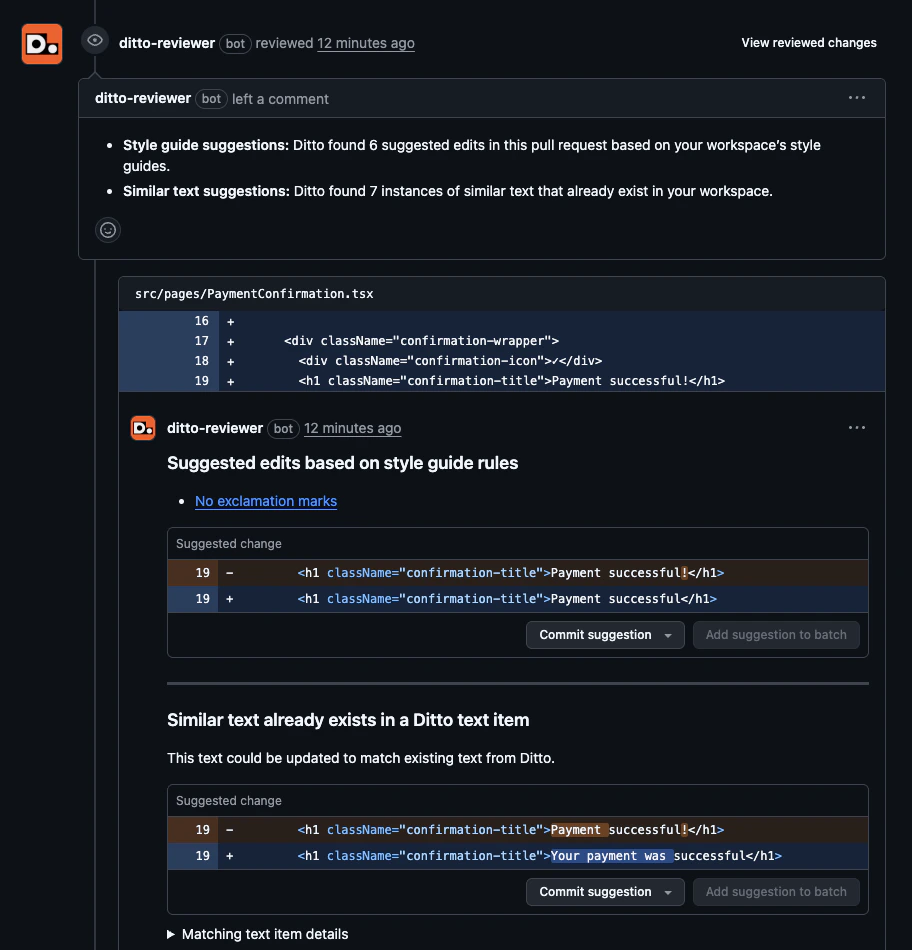
The Ditto GitHub PR Review Bot automatically reviews pull request text and leaves inline suggestions directly in GitHub. When triggered, the bot checks the diff for:- Style guide violations: text that doesn’t match your active Ditto style guide rules
- Text re-use opportunities: text that already exists in Ditto and could be reused instead of introducing new text
Prerequisites
Before setting up the integration, make sure you have:- Style guides enabled in your Ditto workspace with at least one active rule. The bot uses these to evaluate PR text, so without them there’s nothing to check against.
- GitHub admin access for the account or organization you want to install the app on. If you’re a member (not an admin), you can still request installation, but a GitHub admin with Ditto access will need to approve it before the bot activates.
Installation
Open the GitHub integration in Ditto
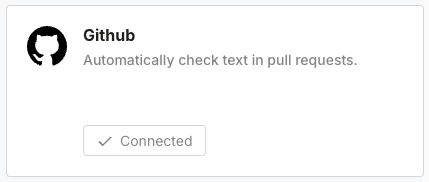
In your Ditto workspace, go to Integrations and find the GitHub card. Click Open.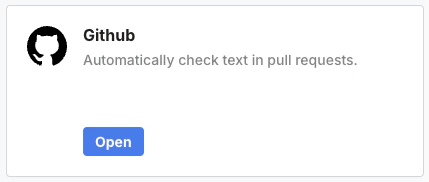
Install the GitHub App
Click Install GitHub App. You’ll be redirected to GitHub to complete the installation. For more details on this flow, see GitHub’s documentation on installing GitHub Apps.Choose the account or organization where you want to install the bot: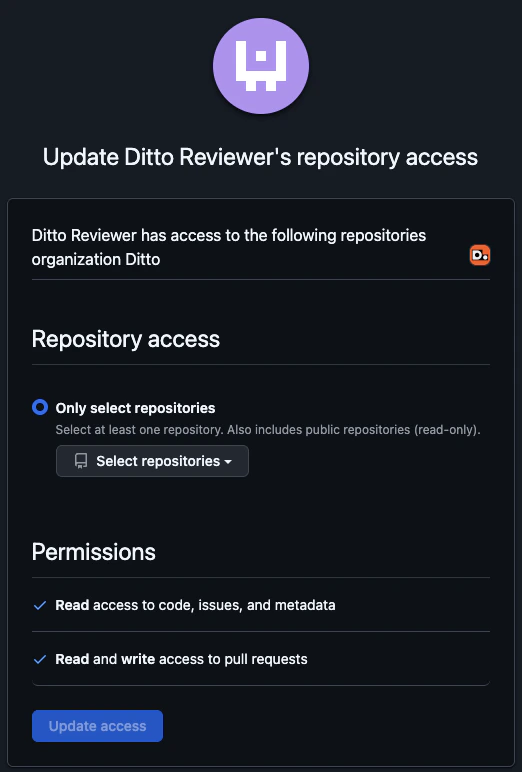
- Org admin: you can install directly.
- Org member: submitting will send an approval request to your org’s admins. The bot won’t be active until an admin approves it.
- Read access to code and metadata
- Read and write access to issues and pull requests
Configuration
Once connected, you can configure the bot’s behavior under Settings > Connections in Ditto.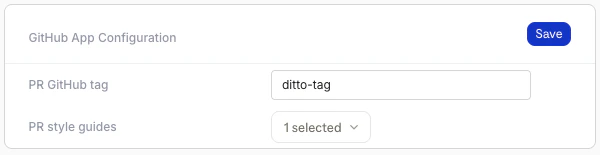
| Setting | Description |
|---|---|
| PR Review Tag | The GitHub label that triggers a review. Defaults to ditto. Change this to any label name that fits your workflow. |
| Style Guides | Select which style guides the bot should check against. Only the selected guides will be used during review. |
Using the Bot
Once installed and configured, a review can be triggered in two ways:- Label: apply your configured label to the PR
- Comment: post
/ditto reviewas a comment on the PR
Trigger a review
Either apply your configured label to the PR, or post a 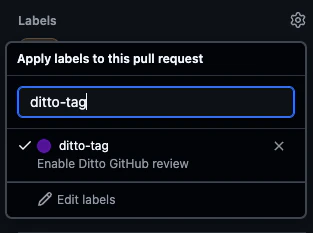
/ditto review comment. Both will kick off a review.Review the bot's suggestions
In a few moments, the Ditto bot will comment on the PR with a summary of its findings, including any style guide violations and existing text in Ditto that could be reused.If nothing is flagged, it will let you know the text looks good.
Accept or ignore suggestions
You can commit suggestions directly from GitHub’s PR interface. The changes will be associated with the user that accepts the suggestions.If the PR has the triggering label applied, the bot will automatically re-review on each new commit and won’t re-flag suggestions that have already been addressed.